What is server virtualization? The ultimate guide
Server virtualization is a process that creates and abstracts multiple virtual instances on a single server. Server virtualization also abstracts or masks server resources, including the number and identity of individual physical machines, processors and different operating systems.
Traditional computer hardware and software designs typically supported single applications. Often, this forced servers to each run a single workload, wasting unused processors, memory capacity and other hardware resources such as network bandwidth. Server hardware counts spiraled upward as organizations deployed more applications and services across the enterprise. The corresponding costs and increasing demands on space, power, cooling and connectivity pushed data centers to their limits.
The advent of server virtualization changed all this. Virtualization adds a layer of software, called a hypervisor, to a computer, which abstracts the underlying hardware from all the software that runs above. Virtualization translates physical resources into virtual -- logical -- equivalents. The hypervisor then organizes and manages the computer's virtualized resources, provisioning those virtualized resources into logical instances called virtual machines (VMs), each capable of functioning as a separate and independent server.
The key here is resource utilization. Hypervisor-managed virtualization can create and run multiple simultaneous VMs built from the computer's available resources. Virtualization can enable one computer to do the work of multiple computers, utilizing up to 100% of the server's available hardware to handle multiple workloads simultaneously. This reduces server counts, eases the strain on data center facilities, improves IT flexibility and lowers the cost of IT for the enterprise.
Virtualization has changed the face of enterprise computing, but its many benefits are sometimes tempered by factors such as licensing and management complexity, as well as potential availability and downtime issues. Organizations must understand what virtualization is, how it works, its tradeoffs and use cases. Only then can an organization adopt and deploy virtualization effectively across the data center.
Why is server virtualization important?
To appreciate the role of virtualization in the modern enterprise, consider a bit of IT history.
Virtualization isn't a new idea. The technology first appeared in the 1960s during the early era of computer mainframes as a means of supporting mainframe time-sharing, which divides the mainframe's considerable hardware resources to run multiple workloads simultaneously. Virtualization was an ideal and essential fit for mainframes because the substantial cost and complexity of mainframes limited them to just one deployed system -- organizations had to get the most utilization from the investment.
The advent of x86 computing architectures brought readily available, simple, low-cost computing devices into the 1980s. Organizations moved away from mainframes and embraced individual computer systems to host or serve each enterprise application to growing numbers of user or client endpoint computers. Because individual x86-type computers were simple and limited in processing, memory and storage capacity, the x86 computer and its operating systems (OSes) were typically only capable of supporting a single application. One big, shared computer was replaced by many little cheap computers. Virtualization was no longer necessary, and its use faded into history along with mainframes.
But two factors emerged that drove the return of virtualization technology to the modern enterprise. First, computer hardware evolved quickly and dramatically. By the early 2000s, typical enterprise-class servers routinely provided multiple processors and far more memory and storage than most enterprise applications could realistically use. This resulted in wasted resources -- and wasted capital investment -- as excess computing capacity on each server went unused. It was common to find an enterprise server utilizing only 15% to 25% of its available resources.
The second factor was a hard limit on facilities. Organizations simply procured and deployed additional servers as more workloads were added to the enterprise application repertoire. Over time, the sheer number of servers in operation could threaten to overwhelm a data center's physical space, cooling capacity and power availability. The early 2000s experienced major concerns with energy availability, distribution and costs. The trend of spiraling server counts and wasted resources was unsustainable.
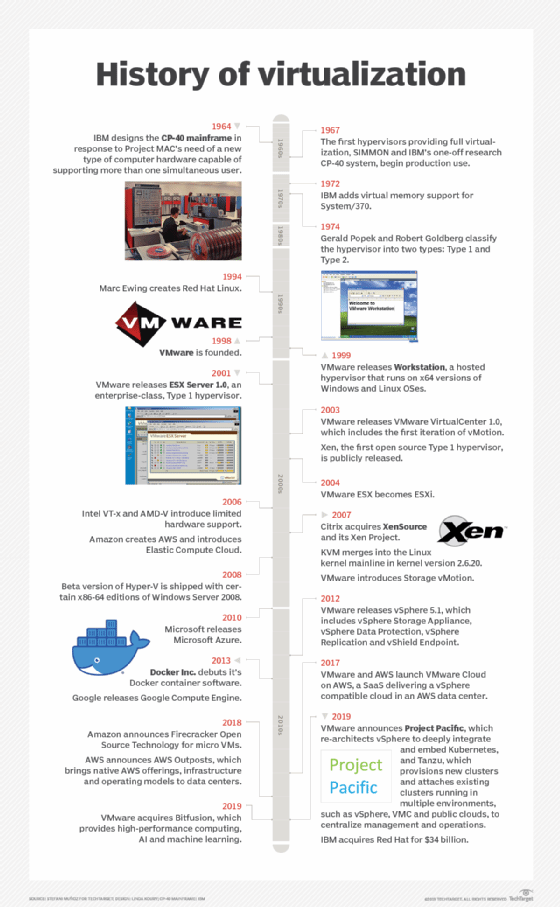
Server virtualization reemerged in the late 1990s with several basic products and services, but it wasn't until the release of VMware's ESX Server 1.0 product in 2001 that organizations finally had access to a production-ready virtualization software platform. The years that followed introduced additional virtualization products from the Xen Project, Microsoft's Hyper-V with Windows Server 2008 and others. Virtualization had matured in stability and performance, and the introduction of Docker in 2013 ushered in the era of virtualized containers offering greater speed and scalability for microservices application architectures compared to traditional VMs.
Today's virtualization platforms embrace the same functional ideas as their early mainframe counterpart. Virtualization abstracts software from the underlying hardware, enabling virtualization to provision and manage virtualized resources as isolated and independent logical instances -- effectively turning one physical server into multiple virtual servers, each capable of operating independently to support multiple applications running on the same physical computer at the same time.
The importance of server virtualization has been profound because it addresses the two problems that plagued enterprise computing into the 21st century. Virtualization lowers the physical server count, enabling an organization to reduce the number of physical servers in the data center -- or run vastly more workloads without adding servers. It's a technique called server consolidation. The lower server count also conserves data center space, power and cooling; this can often forestall or even eliminate the need to build new data center facilities. In addition, virtualization platforms routinely provide powerful capabilities such as centralized VM management, VM migration -- enabling a VM to easily move from one system to another -- and workload/data protection through backups and snapshots.
Virtualization also formed a cornerstone of modern cloud services. By helping to overcome the limitations of physical server environments, virtualization provided a principal mechanism to allow flexible, highly consolidated, highly efficient, software-driven data centers that are essential to practical cloud computing. There would be no cloud without server virtualization and other virtualization technologies such as network virtualization.
How does server virtualization work?
Server virtualization works by abstracting or isolating a computer's hardware from all the software that might run on that hardware. This abstraction is accomplished by a hypervisor, a specialized software product which must be installed on a physical computer. There are numerous hypervisors in the enterprise space, including Microsoft Hyper-V and VMware vSphere.
Later introduction of virtual containers as a virtualization alternative uses a hypervisor variation called a container engine, such as Docker or Apache Mesos. Although the characteristics and behaviors of containers are slightly different than their VM counterparts, the underlying goals of resource abstraction, provisioning and management are identical.
Abstraction recognizes the computer's physical resources -- including processors, memory, storage volumes and network interfaces -- and creates logical aliases for those resources. For example, a physical processor can be abstracted into a logical representation called a virtual CPU, or vCPU. The hypervisor is responsible for managing all the virtual resources that it abstracts and handles all the data exchanges between virtual resources and their physical counterparts.
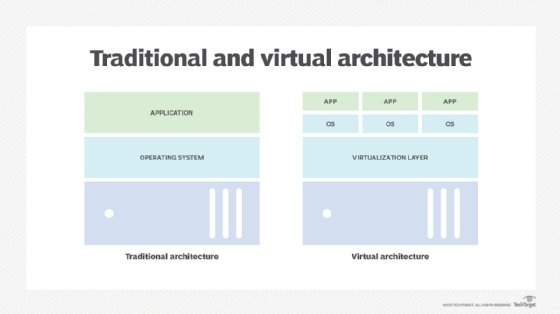
The real power of a hypervisor isn't abstraction, but what can be done with those abstracted resources. A hypervisor uses virtualized resources to create logical representations of computers, or VMs. A VM is assigned virtualized processors, memory, storage, network adapters and other virtualized elements -- such as GPUs -- managed by the hypervisor. When a hypervisor provisions a VM, the resulting logical instance is completely isolated from the underlying hardware and all other VMs established by the hypervisor. This means a VM has no direct dependence on, or knowledge of, the underlying physical computer or any of the other VMs that might share the physical computer's resources.
This logical isolation, combined with careful resource management, enables a hypervisor to create and control multiple VMs on the same physical computer at the same time -- with each VM capable of acting as a complete, fully functional computer. Virtualization enables an organization to carve several virtual servers from a single physical server. Once a VM is established, it requires a complete suite of software installation, including its own operating system, drivers, libraries and the desired enterprise application. This enables an organization to use multiple OSes to support a wide mix of workloads all on the same physical computer. For example, one VM might use a Windows Server version to run a Windows application, while another VM on the same computer might use a Linux variation to run a Linux application.
The abstraction enabled by virtualization gives VMs extraordinary flexibility that isn't possible with traditional physical computers and physical software installations. All VMs exist and run in a computer's physical memory space, so VMs can easily be saved as ordinary memory image files. These saved files can be used to quickly create duplicate or clone VMs on the same or other computers across the enterprise, or to save the VM at that point in time. Similarly, a VM can easily be moved from one virtualized computer to another simply by copying the desired VM from the memory space of a source computer to a memory space in a target computer and then deleting the original VM from the source computer. In most cases, the migration can take place without disrupting the VM or user experience.
Although virtualization makes it possible to create multiple logical computers from a single physical computer, the actual number of VMs that can be created is limited by the physical resources present on the host computer, and the computing demands imposed by the enterprise applications running in those VMs. For example, a computer with four CPUs and 64 GB of memory might host up to four VMs each with one vCPU and 16 GB of virtualized memory. Once a VM is created, it's possible to change the abstracted resources assigned to the VM to optimize the VM's performance and maximize the number of VMs hosted on the system.
Newer and more resource-rich computers can host a larger number of VMs, while older systems or those with compute-intensive workloads might host fewer VMs. It's possible for the hypervisor to assign resources to more than one VM -- a practice called overcommitment -- but this is discouraged because of computing performance penalties incurred, as the system must time-share any overcommitted resources. The ready availability of powerful new computers also makes overcommitment all but unnecessary because the penalties of overcommitment far outweigh the benefits of squeezing another VM onto a physical system. It's easier and better to just provision the additional VM on another system where resources are available.
What are the benefits of server virtualization?
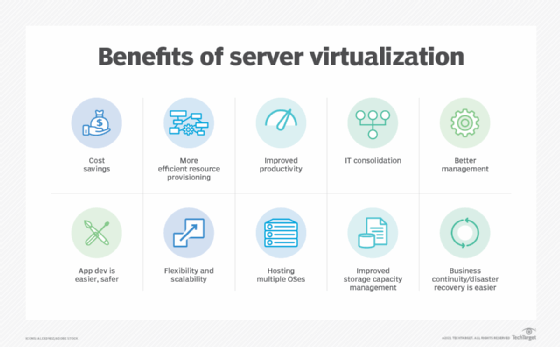
Virtualization brings a wide range of technological and business benefits to the organization. Consider a handful of the most important and common virtualization benefits:
- Server consolidation. Because virtualization enables one physical server to do the work of several servers, the total number of servers in the enterprise can be reduced. It's a process called server consolidation. For example, suppose there are currently 12 physical servers, each running a single application. With the introduction of virtualization, each physical server might host three VMs, with each VM running an application. Then, the organization would only require four physical servers to run the same 12 workloads.
- Simplified physical infrastructure. With fewer servers, the number of racks and cables in the data center is dramatically reduced. This simplifies deployments and troubleshooting. The organization can accomplish the same computing goals with just a fraction of the space, power and cooling required for the physical server complement.
- Reduced hardware and facilities costs. Server consolidation lowers the cost of data center hardware as well as facilities -- remember, less power and cooling. Server consolidation through virtualization is a significant cost-saving tactic for organizations with large server counts and was one of the primary drivers for early virtualization adoption through the 2000s.
- Greater server versatility. Because every VM exists as its own independent instance, every VM must run an independent OS. However, the OS can vary between VMs, enabling the organization to deploy any desired mix of Windows, Linux and other OSes on the same physical hardware. Such flexibility is unmatched in traditional physical server deployments.
- Improved management. Virtualization centralizes resource control and VM instance creation. Modern virtualization adds a wealth of tools and features that give IT administrators control and oversight of the virtualized environment. As examples, live migration features enable a VM to be moved between two physical servers without stopping the workload. Data protection features, such as snapshots, can capture a VM's state at any point in time, enabling the VM to be recovered quickly and easily from unexpected faults or disasters. Virtualization lends itself well to centralized management, enabling admins to see all VMs in the environment and deploy patches or updates with less chance of mistakes.
What are the disadvantages of server virtualization?
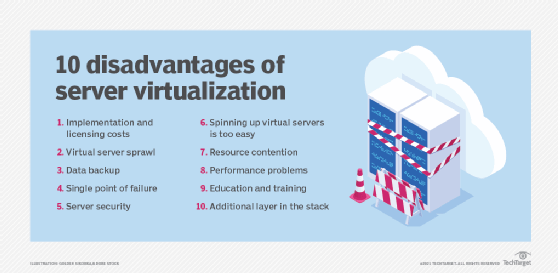
Although server virtualization brings a host of potential benefits to the organization, the additional software and management implications of virtualization software bring numerous possible disadvantages that the organization should consider:
- Risk and availability. Running multiple workloads on the same physical computer carries risks for the organization. Before the advent of virtualization, a server failure only affected the associated workload. With virtualization, a server failure can affect multiple workloads, potentially causing greater disruption to the organization, its employees, partners and customers. IT leaders must consider issues such as workload distribution -- which VMs should reside on which physical servers -- and implement recovery and resiliency techniques to ensure critical VMs are available in the aftermath of server or other physical infrastructure faults.
- VM sprawl. IT resources depend on careful management to track the availability, utilization, health and performance of resources. Knowing what's present, how it's used and how it's working are keys to data center efficiency. A persistent challenge with virtualization and VMs is the creation and eventual -- though sometimes unintended -- abandonment of VMs. Unused or unneeded VMs continue to consume valuable server resources but only do a little valuable work; meanwhile, those resources aren't available to other VMs. Over time, VMs proliferate, and the organization runs short of resources, forcing it to make unplanned investments in additional capacity. The phenomenon is called VM sprawl or virtual server sprawl. Unneeded VMs must be identified and decommissioned so that resources are freed for reuse. Proper workload lifecycle management and IT resource management will help to mitigate sprawl issues, but it takes effort and discipline to address sprawl.
- Resource shortages. Virtualization makes it possible to exceed normal server resource utilization, primarily in memory and networking. For example, VMs can share the same physical memory space, relying on conventional page swap -- temporarily moving memory pages to a hard disk so the memory space can be used by another application. Virtualization can assign more memory than the server has; this is called memory overcommitment. Overcommitment is undesirable because the additional latency of disk access can slow the VM's performance. Network bandwidth can also become a bottleneck as multiple VMs on the same server compete for network access. Both issues can be addressed by upgrading the host server or by redistributing VMs between servers.
- Licensing. Software costs money in procurement and licensing, which can easily be overlooked. Hypervisors and associated virtualization-capable management tools impose additional costs on the organization, and hypervisor licensing must be carefully monitored to observe the terms and conditions of the software's licensing agreements. License violations can carry litigation and significant financial penalties for the offending organization. In addition, bare-metal VMs require independent OSes, requiring licenses for each OS deployment.
- Experience. Successful implementation and management of a virtualized environment depends on the expertise of IT staff. Education and experience are essential to ensure that resources are provisioned efficiently and securely, monitored and recovered in a timely manner, and protected appropriately to ensure each workload's continued availability. Business policies play an important role in resource use, helping to define how new VMs are requested, approved, provisioned and managed throughout the VM's lifecycle. Fortunately, virtualization is a mature and widely adopted technology today, so there are ample opportunities for education and mentoring in hypervisors and virtualization management.
Use cases and applications
Virtualization has proven to be a reliable and versatile technology that has permeated much of the data center in the last two decades. Yet organizations might continue to face important questions about suitable use cases and applications for virtualization deployment. Today, server virtualization can be applied across a vast spectrum of enterprise use cases, projects and business objectives, including the following:
- Server consolidation. Consolidation is the quintessential use case for server virtualization -- it's what put virtualization on the map. Consolidation is the process of translating physical workloads into VMs, and then migrating those VMs onto fewer physical servers. This reduces server count, mitigates the costs of server purchases and maintenance, frees space in the data center and eases the power and cooling needs for IT. Virtualization enables IT to do more with less and save money at the same time. Consolidation might simply be an assumed use case today, but it's still a primary driver for virtualization.
- Development and testing. Although server virtualization supports production environments and workloads, the flexibility and ease that virtualization brings to VM provisioning and deployment makes it good for development and testing initiatives. It's a simple matter to provision a VM to test a new software build; experiment with VM configurations, optimizations and integrations -- getting multiple VMs to communicate -- and validate workload recoveries as part of disaster recovery testing. These VMs are often temporary and can be removed when testing is complete to avoid undesirable VM sprawl.
- Improve availability. Virtualization software routinely includes an assortment of features and functionality that can enhance the reliability and availability of workloads running in VMs. As an example, live migration enables a VM to be moved between physical servers without stopping the workload. VMs can be moved from troubled machines or systems scheduled for maintenance without any noticeable disruption. Functions such as prioritized VM restart ensure that the most important VMs -- those with critical workloads and services or dependencies -- are restarted before other VMs to streamline restarts after disruptions. Features such as snapshots can maintain recent VM copies, protecting VMs and enabling rapid restarts with little, if any, data loss. Other availability features help multiple instances of the same workload share traffic and processing loads, maintaining workload availability should one VM fail. Virtualization has become a central element of maintenance and disaster plans.
- Centralization. Before server virtualization, the onus was on IT staff to track applications and associated servers. Virtualization brings powerful tools that can discover, organize, track and manage all the VMs running across the environment through a single pane of glass to provide IT admins with comprehensive views of the VM landscape, as well as any alerts or problems that might require attention. In addition, virtualization tools are highly suited to automation and orchestration technologies, enabling autonomous VM creation and management to speed IT administration tasks.
- Multi-platform support. Each VM runs its own unique OS. Virtualization has emerged as a convenient means for supporting multiple OSes in a single physical server, as well as servers across the entire data center environment. Organizations can run desired mixes of Windows, Linux and other OSes on the same x86 server hardware that is completely abstracted by virtualization's hypervisor.
There are very few enterprise workloads that can't function well in a VM. These include legacy applications that depend on direct access to specific server hardware devices to function, such as a specific processor model or type. Such concerns are rare today and should continue to abate as legacy applications are inevitably revised and updated over time.
What are the types of server virtualization?
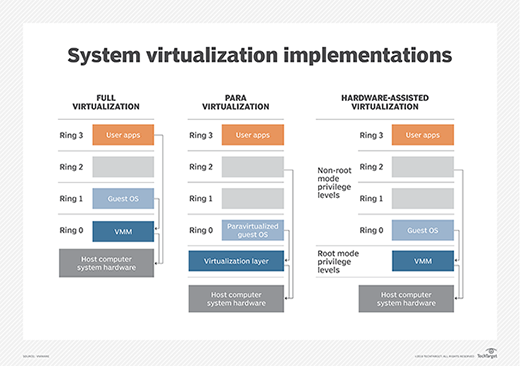
Virtualization is accomplished through several proven techniques: the use of VMs, the use of paravirtualization and the implementation of virtualization hosted by the OS.
VM model
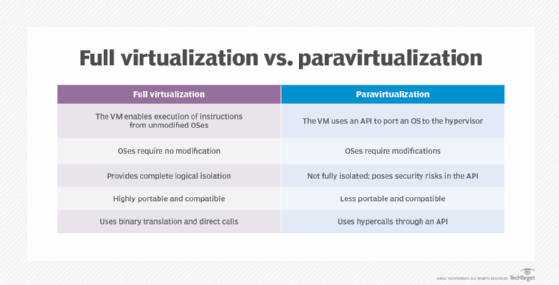
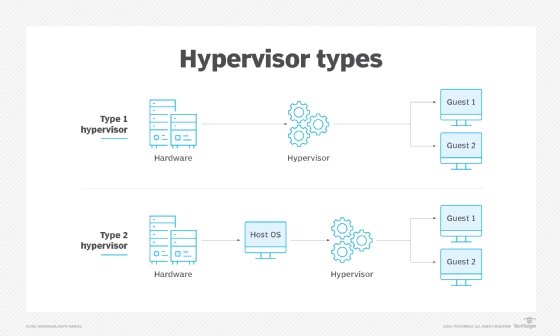
The VM model is the most popular and widely implemented approach to virtualization used by VMware and Microsoft. This approach employs a hypervisor based on a virtual machine monitor (VMM) that is usually applied directly onto the computer's hardware. Such hypervisors are typically dubbed Type 1, full virtualization or bare-metal virtualization, and require no dedicated OS on the host computer. In fact, a bare-metal hypervisor is often regarded as a virtualization OS -- an operating system in its own right. The term host VM is often applied to a principal VM running the server's management software or other main workload -- though Type 1 hypervisors rarely designate or require a host VM today.
The hypervisor is responsible for abstracting and managing the host computer's resources, such as processors and memory, and then providing those abstracted resources to one or more VM instances. Each VM exists as a guest atop the hypervisor. Guest VMs are completely logically isolated from the hypervisor and other VMs. Each VM requires its own guest OS, enabling organizations to employ varied OS versions on the same physical computer.
Paravirtualization
Early bare-metal hypervisors faced performance limitations. Paravirtualization emerged to address those early performance issues by modifying the host OS to recognize and interoperate with a hypervisor through commands called hypercalls. Once successfully modified, the virtualized computer could create and manage guest VMs. OSes installed in guest VMs could employ varied and unmodified OSes and unmodified applications.
The principal challenge of paravirtualization is the need for a host OS -- and the need to modify that host OS -- to support virtualization. Unmodified proprietary OSes, such as Microsoft Windows, won't support a paravirtualized environment, and a paravirtualized hypervisor, such as Xen, requires support and drivers built into the Linux kernel. This poses considerable risk for OS updates and changes. An organization shifting from one OS to another might risk losing paravirtualization support. The popularity of paravirtualization quickly waned as computer hardware evolved to support VMM-based virtualization directly, such as introducing virtualization extensions to the processors' command set.
Hosted virtualization
Although it's most common to host a hypervisor directly on a computer's hardware -- foregoing the need for a host OS -- a hypervisor can also be installed atop an existing host OS to provide virtualization services for one or more VMs. This is dubbed Type 2 or hosted virtualization and is employed by products such as Virtuozzo and Solaris Zones. The Type 2 hypervisor enables each VM to share the underlying host OS kernel along with common binaries and libraries, whereas Type 1 hypervisors don't allow such sharing.
Hosted virtualization potentially makes guest VMs far more resource efficient because VMs share a common OS -- the OS need not be duplicated for every VM. Consequently, hosted virtualization can potentially support hundreds, even thousands, of VM instances on the same system. However, the common OS offers a single vector for failure or attack: If the host OS is compromised, all the VMs running atop the hypervisor are potentially compromised too.
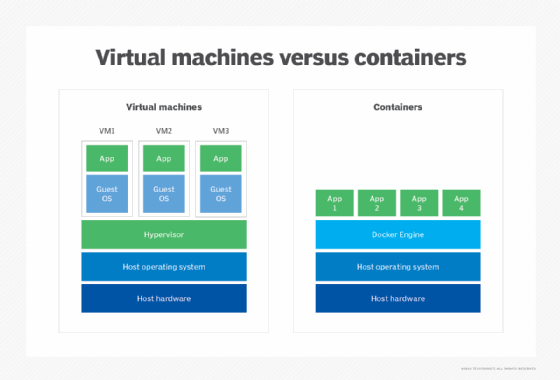
The efficiency of hosted VMs has spawned the development of containers. The basic concept of containers is identical to hosted virtualization where a hypervisor is installed atop a host OS, and virtual instances all share the same OS. But the hypervisor layer -- for example, Docker and Apache Mesos -- is tailored specifically for high volumes of small, efficient VMs intended to share common components or dependencies such as binaries and libraries. Containers have found significant growth with microservice-based software architectures where agile, highly scalable components are deployed and removed from the environment quickly.
Migration and deployment best practices
Virtualization brings powerful capabilities to enterprise IT, but virtualization requires an additional software layer that demands careful and considered management -- especially in areas of VM deployment and migration.
A VM can be created on demand, manually constructing the VM by provisioning resources and setting an array of configuration items, then installing the OS and application. Although a manual process can work fine for ad hoc testing or specialized use cases, such as software evaluation, deployment can be vastly accelerated using templates, which predefine the resources, configuration and contents of a desired VM. A template defines the VM, which can then automatically be built quickly and accurately, and duplicated as needed. Major hypervisors and associated management tools support the use of templates, including Hyper-V and vSphere.
Templates are important in enterprise computing environments. They bring consistency and predictability to VM creation, ensuring the following:
- Resources are optimally provisioned.
- Security is correctly configured, such as adding shielded VMs in Hyper-V.
- All contents added to the VM, such as OSes, are properly licensed.
- The VM is deployed to suitable servers to observe server load, network load balancing and other factors in the data center.
Templates not only streamline IT efforts and enhance workload performance, but also reflect the organization's business policies and strengthen compliance requirements. Tools such as Microsoft System Center Virtual Machine Manager, Packer and PowerCLI can help create and deploy templates.
Migration is a second vital aspect of virtualization process and practice. Different hypervisors can offer different feature sets and aren't 100% interoperable. An organization might opt to use multiple hypervisors, but moving an existing VM from one hypervisor to another requires a means to migrate VMs created for one hypervisor to function on another hypervisor instead. Consider a migration from Hyper-V to VMware, where a tool such as VMware vCenter Converter can help to migrate VMs en masse.
Migrations typically involve a consideration of current VM inventory that should detail the number of VMs, destination system capacity and dependencies. Admins can select source VMs, set destination VMs -- including any destination folders -- install any agents needed for the conversion, set migration options such as the VM format and submit the migration job for execution. It's often possible to set migration schedules, enabling admins to set desired migration times and groups so related VMs can be moved in the best order at a time when effects are minimized.
Such hypervisor migrations aren't quick or easy. The decision to change hypervisors and migrate VMs from one hypervisor to another should be carefully tested and validated well in advance of any actual migration initiative.
Server virtualization management
Managing virtualization across an enterprise requires a combination of practical experience, clear policies, conscientious planning and capable tools. Virtualization management can usually be clarified through a series of common best practices that emphasize the role of the infrastructure as well as the business:
- Have a plan. Don't adopt virtualization for its own sake. Server virtualization offers some significant benefits, but there are also costs and complexities to consider. An organization planning to adopt virtualization for the first time should have a clear understanding of why and where the technology fits in a business plan. Similarly, organizations that already virtualize parts of the environment should understand why and how expanding the role of virtualization will benefit the business. The answer might be as obvious as a server consolidation project to save money, or a vehicle to support active software development projects outside of the production environment. Regardless of the drivers, have a plan before going into a virtualization initiative.
- Assess the hardware. Get a sense of scope. Virtualization software, both hypervisors and management tools, must be purchased and maintained. Understand the number of systems as well as the applications that must be virtualized and investigate the infrastructure to verify that the hardware should support virtualization. Almost all current data center hardware is suited for virtualization but perform the due diligence upfront to avoid discovering an incompatibility or inadequate hardware during an installation.
- Test and learn. Any new virtualization rollout is typically preceded by a period of testing and experimentation, especially when the technology is new to the organization and IT team. IT teams should have a thorough working knowledge of a virtualization platform before it's deployed and used in a production setting. Even when virtualization is already present, the move to virtualize new workloads -- especially mission-critical workloads -- should involve detailed proof-of-principle projects to learn the tools and validate the process. Smaller organizations can turn to service providers and consultants for help if necessary.
- Focus on the business. Virtualization should be deployed and used according to the needs of the business, including a careful consideration of security, regulatory compliance, business continuance, disaster recovery and VM lifecycles -- provisioning, using and then later recovering resources. IT management tools should support virtualization and map appropriately against all those business considerations.
- Start small and build out. Organizations new to server virtualization should follow a period of testing and experimentation with small, noncritical virtualization deployments, such as test and development servers. Seek the small and quick wins to gain experience, learn troubleshooting and demonstrate the value of virtualization while minimizing risk. Once a body of expertise is available, the organization can plan and execute more complex virtualization projects.
- Adopt guidelines. As the organization embraces server virtualization, it's appropriate to create and adopt guidelines around VM provisioning, monitoring and lifecycles. Computing resources cost money. Guidelines can help codify the processes and practices that enable an organization to manage those costs, avoid resource waste by preventing overprovisioning and VM sprawl and maintain consistent behaviors that tie back to security and compliance issues. Guidelines should be periodically reviewed and updated over time.
- Select a tool. Virtualization management tools usually aren't the first consideration in an organization's virtualization strategy. Virtualization platforms typically include basic tools, and it's good practice to get comfortable with those tools in the early stages of virtualization adoption. Eventually, the organizations might find benefits in adopting more comprehensive and powerful tools that support large and sophisticated virtualization environments. By then, the organization and IT staff will have a clear picture of the features and functionality required from a tool, why those features are needed and how these features will benefit the organization. Server virtualization management tools are selected based on a wide range of criteria, including licensing costs, cross-platform compatibility supporting multiple hypervisors from multiple vendors, support for templates and automation, direct control over VMs and storage, and even the potential for self-service and chargebacks -- enabling other departments or users to provision VMs and receive billing if desired. Organizations can choose from many server virtualization monitoring tools that vary in features, complexity, compatibility and cost. Virtualization vendors typically provide tools intended for the vendor's specific hypervisors. For example, Microsoft System Center supports Hyper-V, while vCenter Server is suited for VMware hypervisors. But organizations can also opt for third-party tools, including ManageEngine Applications Manager, SolarWinds Virtualization Manager and Veeam One.
- Support automation. Virtualization lends itself to automation and orchestration techniques that can speed common provisioning and management tasks while ensuring consistent execution, minimizing errors, mitigating security risks and bolstering compliance. Generally, tools support automation, but it takes human experience and insight to codify established practices and processes into suitable automation. The adoption of virtual containers closely depends on automation and orchestration -- and uses well-designed tools such as Kubernetes -- to manage a containerized environment.
Vendors and products
There are numerous virtualization offerings in the current marketplace, but the choice of vendors and products often depends heavily on virtualization goals and established IT infrastructures. Organizations that need bare-metal -- Type 1 -- hypervisors for production workloads can typically select from VMware vSphere, Microsoft Hyper-V, Citrix Hypervisor, IBM Red Hat Enterprise Virtualization (RHEV) and Oracle VM Server for x86. VMware dominates the current virtualization landscape for its rich feature set and versatility. Microsoft Hyper-V is a common choice for organizations that already standardize on Microsoft Windows Server platforms. RHEV is commonly employed in Linux environments.
Hosted -- Type 2 -- hypervisors are also commonplace in test and development environments as well as multi-platform endpoints -- such as PCs that need to run Windows and Mac applications. Popular offerings include VMware Workstation, VMware Fusion, VMware Horizon, Oracle VM VirtualBox and Parallels Desktop. VMware's multiple offerings provide general-purpose virtualization, supporting Windows and Linux OSes and applications on Mac hardware, as well as the deployment of virtual desktop infrastructure across the enterprise. Oracle's product is also general-purpose, supporting multiple OSes on a single desktop system. Parallels' hypervisors support non-Mac OSes on Mac hardware.
Hypervisors can vary dramatically in terms of features and functionality. For example, when comparing vSphere and Hyper-V, decision-makers typically consider issues such as the way both hypervisors manage scalability -- the total number of processors and clusters supported by the hypervisor -- dynamic memory management, cost and licensing issues, and the availability and diversity of virtualization management tools.
But some products are also designed for advanced mission-specific tasks. When comparing vSphere ESXi to Nutanix, Nutanix AHV brings hyperconverged infrastructure (HCI), software-defined storage and its Prism management platform to enterprise virtualization. However, AHV is intended for HCI only; organizations that need more general-purpose virtualization and tools might turn to the more mature VMware platform instead.
Organizations can also choose between Xen -- commercially called Citrix Hypervisor -- and Linux KVM hypervisors. Both can run multiple OSes simultaneously, providing network flexibility, but the decision often depends on the underlying infrastructure and any cloud interest. Today, Amazon is reducing support for Xen and opting for KVM, and this can influence the choice of hypervisor for organizations worried about the integration of virtualization software with any prospective cloud provider.
The choice of any hypervisor should only be made after an extended period of evaluation, testing and experimentation. IT and business leaders should have a clear understanding of the compatibilities, performance and technical nuances of a preferred hypervisor, as well as a thorough picture of the costs and license implications of the hypervisor and management tools.
What's the future of server virtualization?
Server virtualization has come a long way in the last two decades. Today, server virtualization is viewed largely as a commodity. It's table stakes -- a commonly used, almost mandatory, element of any modern enterprise IT infrastructure. Hypervisors have also become commodity products with little new or innovative functionality to distinguish competitors in the marketplace. The future of server virtualization isn't a matter of hypervisors, but rather how server virtualization can support vital business initiatives.
First, server virtualization isn't a mutually exclusive technology. One hypervisor type might not be ideal for every task, and bare-metal, hosted and container-based hypervisors can coexist in the same data center to serve a range of specific roles. Organizations that have standardized one type of virtualization might find reasons to deploy and manage additional hypervisor types moving forward.
Consider the burgeoning influence of containers. VMs and containers are two different types of virtualization, handled by two different types of hypervisors -- yet the VMs and containers can certainly operate side-by-side in a data center to handle different types of enterprise workloads.
Second, the continued influence and evolution of technologies such as HCI will test the limits of virtualization management. For example, recent trends toward disaggregation or HCI 2.0 work by separating computing and storage resources, and virtualization tools must efficiently organize those disaggregated resources into pools and tiers, provision those resources to workloads and monitor those distributed resources accurately.
The continued threats of security breaches and malicious attacks will further the need for logging, analytics and reporting, change management and automation. These factors will drive the evolution of server virtualization management tools -- though not the hypervisor itself -- and improve visibility into the environment for business insights and analytics.
Look toward the future of virtualization management. The focus of virtualization is shifting from the hypervisors -- what you need to do -- to the automation, orchestration and overall intelligence available to streamline and assist administrators on a daily basis -- how you need to do it. Tools like Kubernetes for Docker containers, along with scripts and templates, are absolutely essential for successful container deployments. Look for AI technologies to add autonomy, analytics and predictive features to dynamic virtualized environments.
Finally, traditional server virtualization will see continued integration with clouds and cloud platforms, enabling easier and more fluid migrations between data centers and clouds. Examples of such integrations include VMware Cloud on AWS and Microsoft Azure Stack.
Stephen J. Bigelow, senior technology editor at TechTarget, has more than 20 years of technical writing experience in the PC and technology industry.
Alexander S. Gillis is a technical writer for the WhatIs team at TechTarget.